
Grid transfer — export & import CSV / JSON
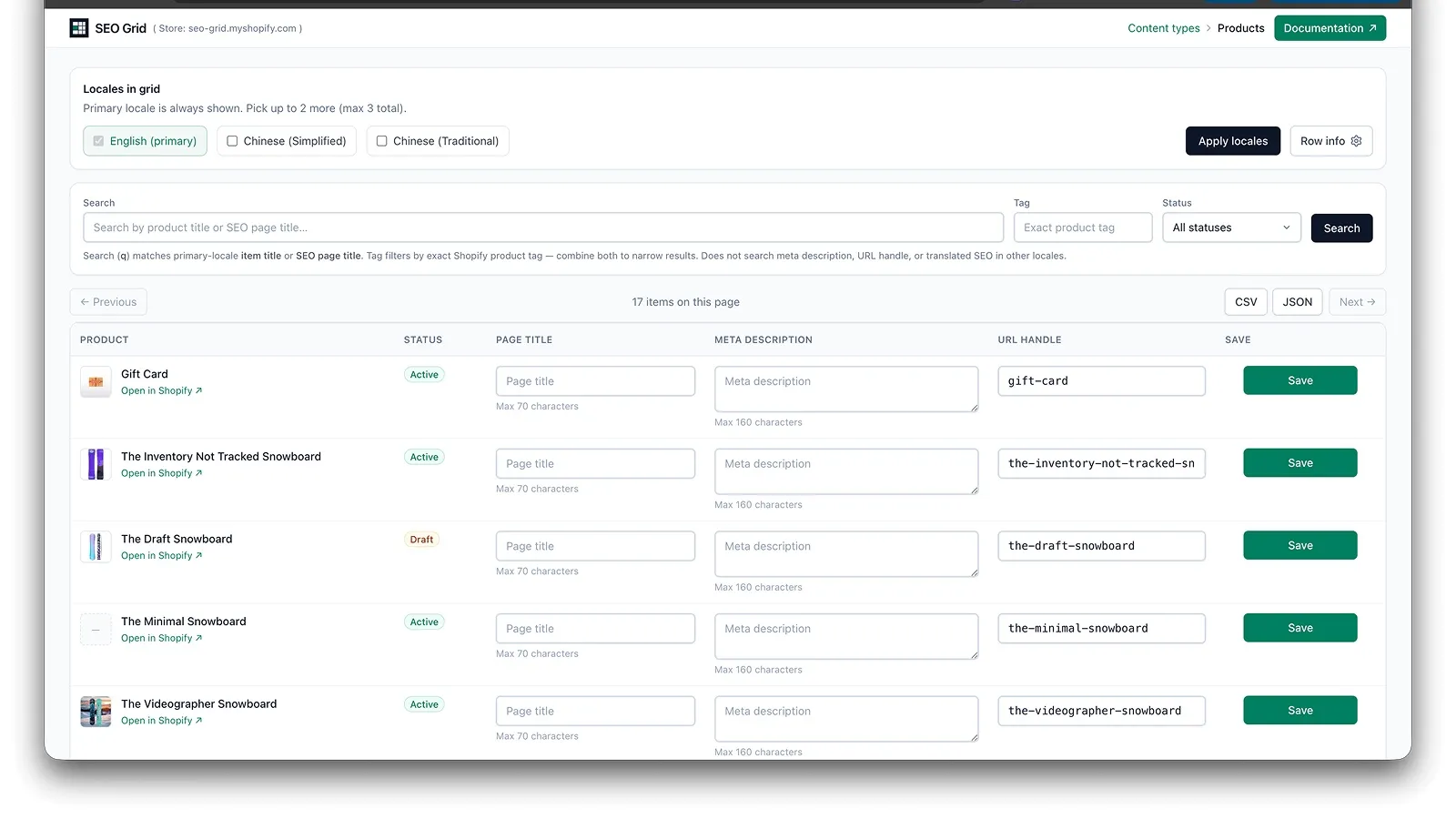
Grid transfer lets you move SEO data for the current grid page (up to 25 visible rows) to a file, edit it outside the app, and load changes back into the grid. Use it for bulk drafting in a spreadsheet, AI-assisted copy, or backup of what you see on screen.
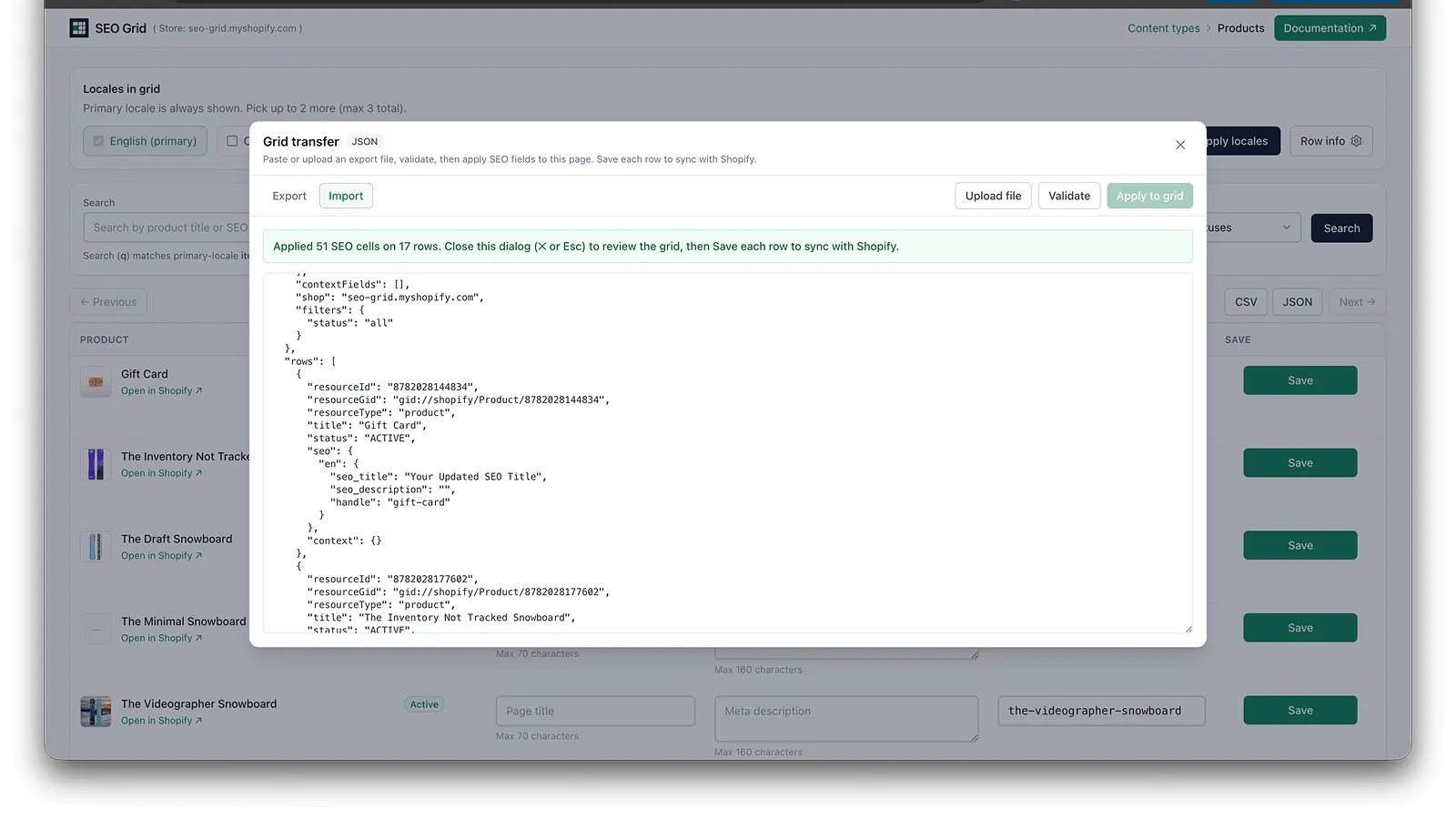
Import fills grid inputs only — it does not write to Shopify until you Save All changed rows or Save each row. Changed rows highlight after Apply.
What gets exported
Section titled “What gets exported”The file matches what you see on this page — same content type, locale columns, filters, and optional Row info fields.
| Included | Not included |
|---|---|
| Up to 25 rows on the current page | Other pages or the full catalog |
| SEO fields per locale (meta title, meta description, URL handle) | Full-catalog bulk write — use Save All or per-row Save on this page after import |
| Row info columns when enabled (description, vendor, tags, body, metaobject text) | Writing Row info back from import (reference only) |
Identity columns (resource_id, title, status) for matching rows | Changing product titles, status, or tags from the file |
Export respects your active search, status, and tag filters. Import ignores export filters — you can import a file from a filtered export onto an unfiltered grid as long as the rows are visible.
Works on products, pages, blog posts, and custom metaobjects (including blog_title on articles and definition_type on metaobjects).
Export workflow
Section titled “Export workflow”- Open the grid you want (set locales and Row info first if you need them in the file).
- Click CSV or JSON in the header.
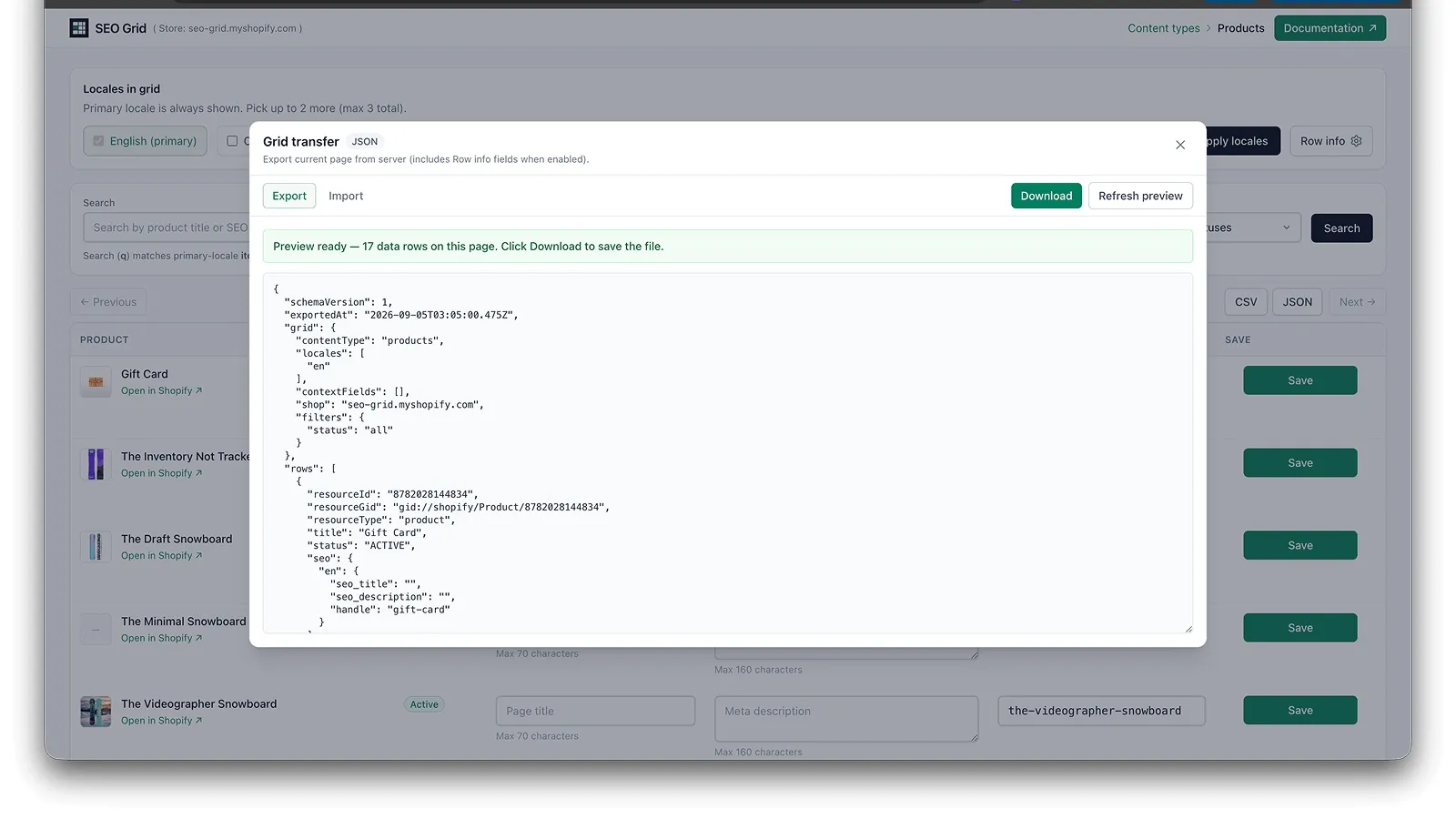
- In the dialog, stay on the Export tab (default).
- Review the preview, then click Download to save the file.
CSV tips
- Opens cleanly in Excel (UTF-8 with optional BOM).
- First line is a
# seo-grid-export v1 …meta comment; second line is the header row. - Context columns use names like
en_description,vendor, ortagsdepending on Row info settings.
JSON tips
- Nested structure with
gridmetadata (shop, content type, locales, context fields) and arowsarray. - Best for AI tools and scripts that prefer structured data.
Import workflow
Section titled “Import workflow”Typical round-trip:
- Export from the grid you will import into (same content type, same locale columns, same Row info settings).
- Edit SEO fields only in the file (meta title, meta description, handle per locale).
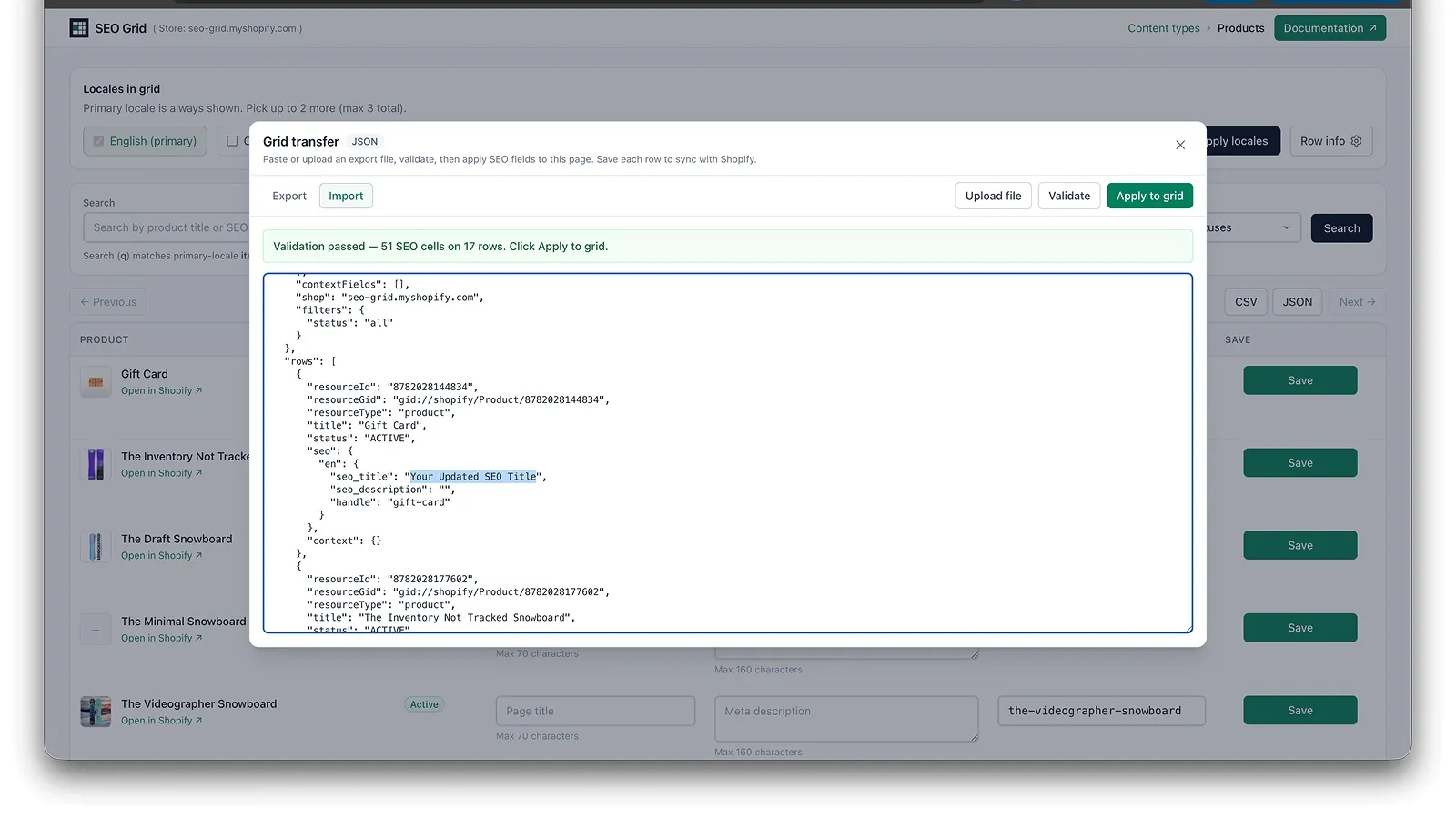
- Click CSV or JSON → switch to the Import tab.
- Paste into the textarea or click Upload file (
.csvor.jsonmatching the format badge). - Click Validate. Fix any errors shown in the status area.
- Click Apply to grid when validation passes.
- Review highlighted rows, then click Save All (N) or Save on each row you changed.
What import changes
Section titled “What import changes”| Field kind | On import |
|---|---|
| SEO per locale (title, description, handle) | Updated in grid inputs |
| Row info (description, vendor, tags, body, …) | Ignored — values in the file do not change the grid (columns must still match when Row info is on) |
Identity (title, status, resource_id, …) | Match only — never written |
- Empty SEO cell in the file → clears that grid input (intentional blank).
- Whitespace around SEO values is trimmed on apply.
- File may contain fewer rows than the page (subset import). Rows in the file that are not on the current page fail validation.
Validation errors
Section titled “Validation errors”Import uses hard fail: if anything is wrong, no grid cells change until validation passes.
| Error prefix | Meaning |
|---|---|
[grid] | File structure or grid settings mismatch (wrong shop, content type, locales, headers, duplicate row ids, …) |
[row:resource_id] | That row is invalid (not on page, bad handle format, …) |
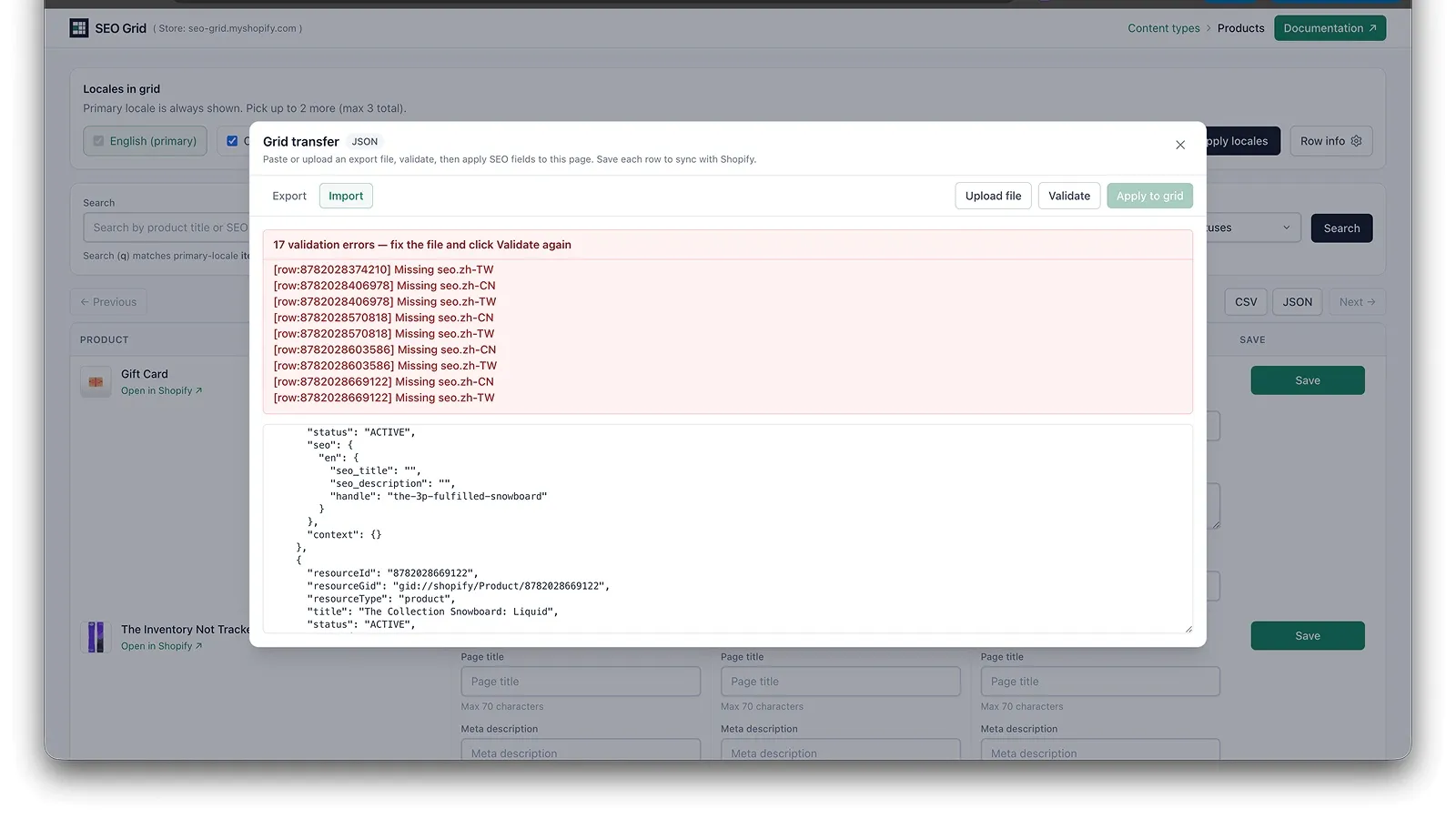
Common fixes:
- Re-export from the same grid settings (locales order, Row info fields).
- Confirm you are on the shop and content type shown in the file’s
grid.shop/ meta line. - For CSV, keep the meta line and header row intact; only edit data rows.
- After editing the textarea, click Validate again (Apply disables if content changed).
AI and spreadsheet workflows
Section titled “AI and spreadsheet workflows”Spreadsheet: Export CSV → edit SEO columns in Excel or Google Sheets → save as CSV → Import → Validate → Apply → Save All or Save rows.
AI assistant: Export JSON → ask your tool to rewrite seo_title / seo_description (and handles if needed) → paste JSON back → Validate → Apply → Save All. See Browser agents for grid markup; export/import does not require agents to click each cell.
Row info columns in the export give AI product description, tags, or body text for context. Import does not write those fields back — only SEO columns apply.
Limits (v1)
Section titled “Limits (v1)”- Current page only — pagination applies; export/import never spans multiple pages.
- Import does not write to Shopify — after Apply, use Save All or per-row Save on this page.
- Locale set must match exactly — same codes and column order as when you exported.
- Handles are validated on import the same way as on row Save.
Related
Section titled “Related”- Save All & unsaved rows — highlights, confirmation, and batch save
- Products, pages & blog posts — grid layout, filters, and Save behaviour
- Multi-locale columns — locale picker affects export/import columns
- Row info — optional context columns in exports
- Browser agents & semantic markup — automation alongside export/import
- Troubleshooting — session and save issues after import