
Custom metaobjects — SEO Grid metaobject grid
SEO Grid supports renderable Shopify metaobjects — entries published as online store pages with Search engine listing fields.
Open the grid
Section titled “Open the grid”- From the type picker, choose Custom metaobjects.
- If your shop has one renderable definition, you go straight to that grid.
- If there are several, pick the definition (metaobject type) you want to edit.
Only definitions with renderable SEO enabled in Shopify appear. Non-renderable types are skipped.
What “renderable SEO” means
Section titled “What “renderable SEO” means”In Shopify, a metaobject definition is renderable when entries can be online store pages with Search engine listing fields (page title and meta description), plus a URL handle.
That is the same kind of SEO you edit on products, pages, and blog posts. SEO Grid only lists those definitions — there is nothing to edit if a type is internal data only (no storefront page, no SEO fields).
Shopify’s Admin label is Publish entries as web pages. In the API this is the renderable capability.
How to turn it on
Section titled “How to turn it on”- In Shopify Admin, go to Settings → Metafields and metaobjects.
- Open the metaobject definition (or create one).
- Under Options, turn on Storefronts access.
- Select Publish entries as web pages.
- Choose which fields map to Page title and Meta description for Search engine listing. You can also set a URL handle prefix.
- Save, then add entries under Content → Metaobjects.
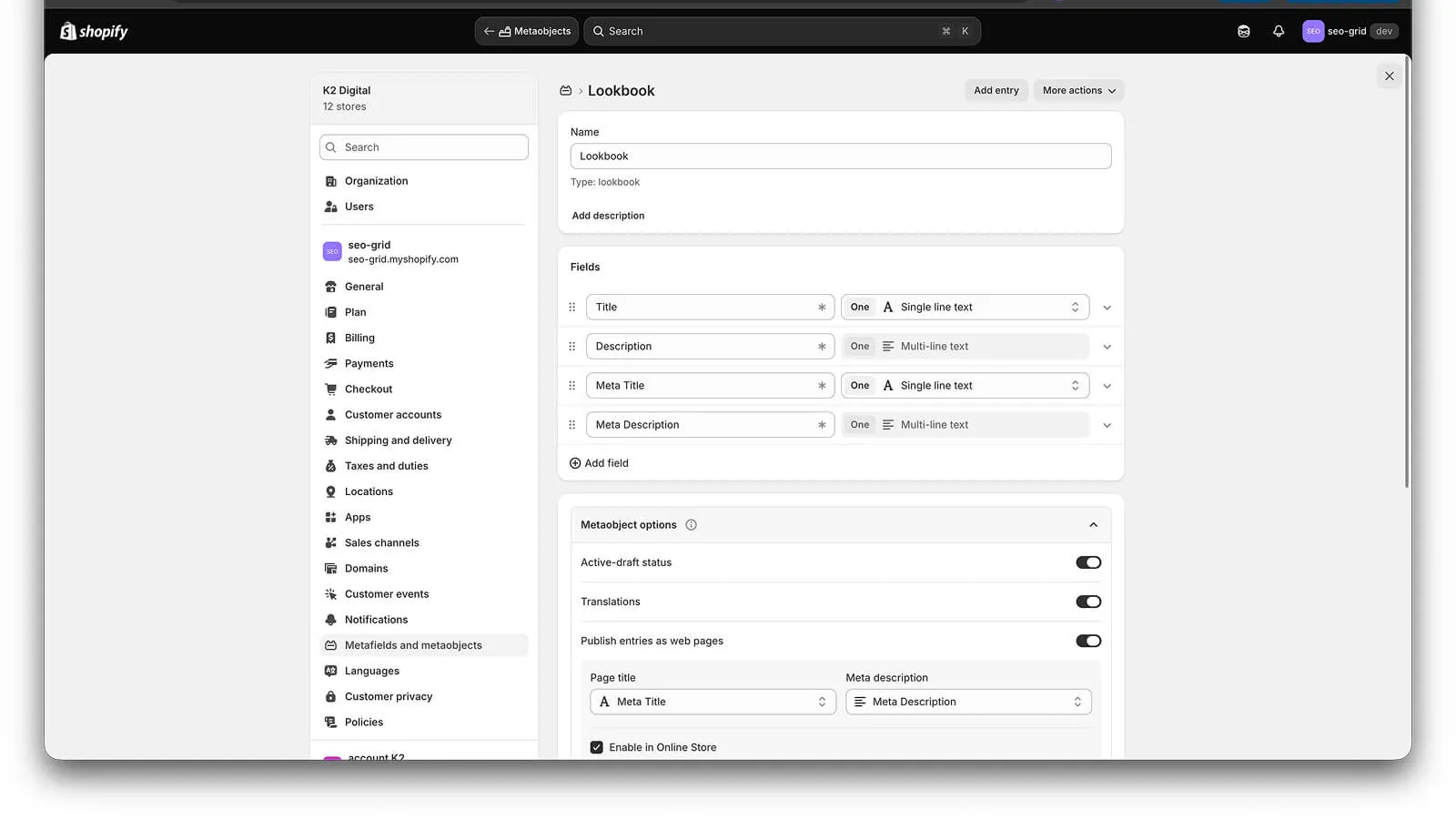
Shopify’s own guide: Building web pages with metaobjects.
To show those URLs on the storefront you also need a metaobject theme template (Online Store editor → Create metaobject template). SEO Grid does not create templates. It only edits SEO on definitions that already have renderable SEO enabled.
If the picker says No renderable metaobject types, this shop has no definition with that option on yet.
Example: Lookbook definition to translations
Section titled “Example: Lookbook definition to translations”This recording shows the full path: create a Lookbook definition, map fields to Page title and Meta description, add an entry, open SEO Grid, enable three locales, save SEO on each locale, then confirm the translations on the Shopify entry in Translate & Adapt.
Columns
Section titled “Columns”Each row is one metaobject entry:
| Column | What it edits |
|---|---|
| Entry | Display name (read-only label; often the same field as page title) |
| Page title | Mapped SEO title field for that definition |
| Meta description | Mapped SEO description field |
| URL handle | Entry handle for the storefront URL |
Field keys come from each definition’s Shopify settings — the app reads them automatically.
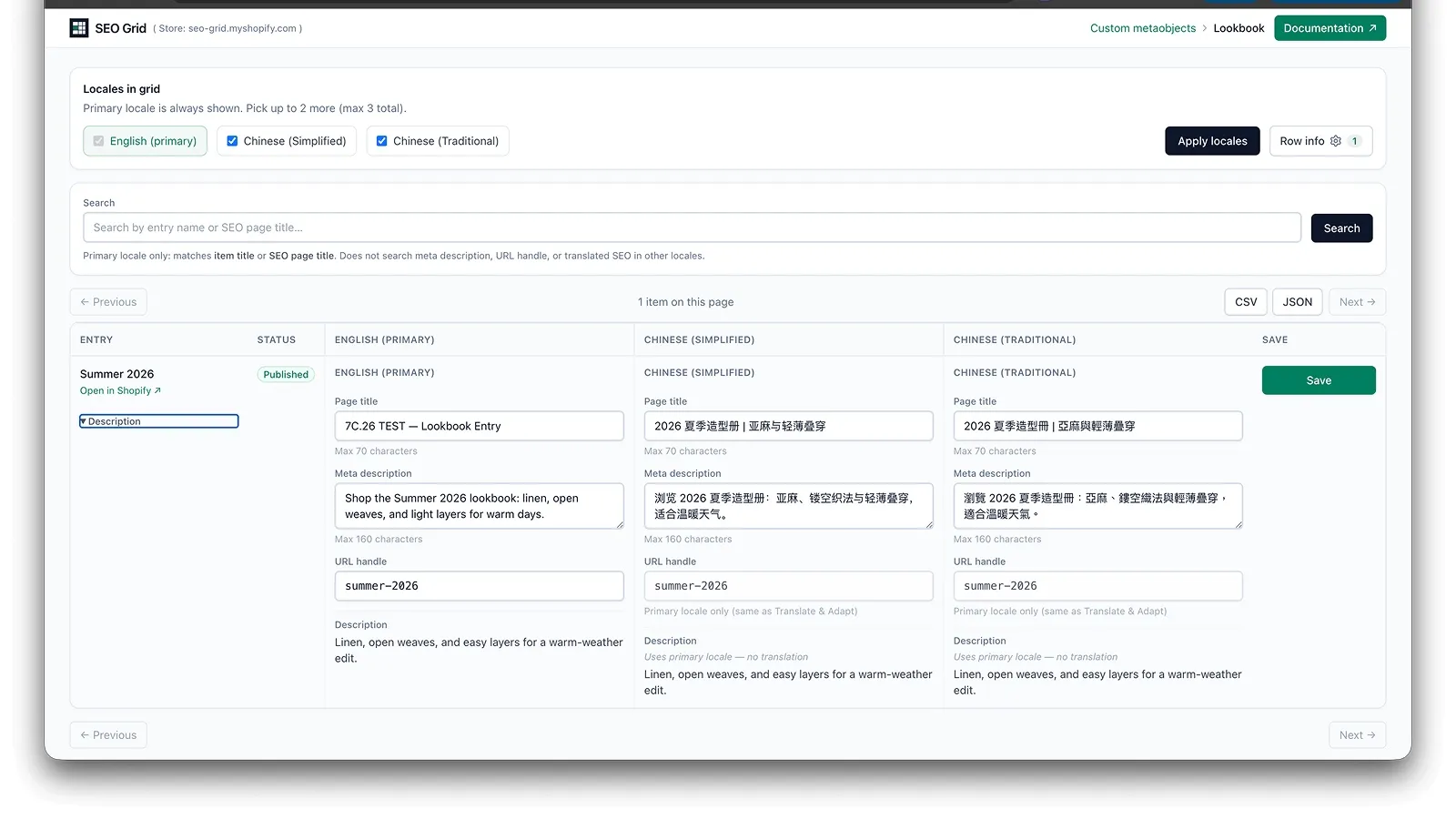
Locales
Section titled “Locales”Same as products, pages, and articles: pick up to three locales, edit SEO fields per locale, Save one row at a time. Secondary locales use Shopify translations when the definition is translatable.
Status column
Section titled “Status column”Each row shows a Status badge — Published (ACTIVE) or Draft (DRAFT) from Shopify’s publishable setting on that entry.
There is no status filter on metaobject grids. Shopify’s metaobject list API does not support server-side filtering by publish state, so SEO Grid lists all entries and shows status per row only.
Row info (optional context)
Section titled “Row info (optional context)”Custom metaobject grids support Row info — the same optional read-only context panel as products, pages, and blog posts. See Row info for the full pattern.
Definition-driven fields
Section titled “Definition-driven fields”Unlike fixed types (vendor, tags, body), metaobject Row info is built from each definition’s field definitions. The checkbox list changes per metaobject type.
Included (text fields only, excluding SEO columns):
| Shopify field type | Row info label example | Display |
|---|---|---|
single_line_text_field | Custom scalar fields | Inline under the entry name |
multi_line_text_field | Body HTML | Expandable panel |
rich_text_field | Content | Expandable panel |
Excluded:
- Fields mapped to Page title and Meta description (already SEO columns)
- URL handle (already in the grid)
- JSON, references, numbers, files, and other non-text types
If a definition has no eligible fields, the Row info button is hidden.
Open Row info on a metaobject grid
Section titled “Open Row info on a metaobject grid”- Open Custom metaobjects and pick your definition type.
- Click Row info (gear) in the grid header.
- Enable the fields you want (e.g. Content, Body HTML on a content-type definition).
- Click Apply, or add field keys to the URL:
/types/metaobjects/your_type?context=content,body_html
Fields are read-only — they help staff and browser agents confirm the correct row while editing SEO. Save never writes Row info values.
Multi-locale layout
Section titled “Multi-locale layout”When two or three locales are selected:
- Toggle for each lazy field (Content, Body HTML) stays in the Entry column.
- Content for each locale appears under the SEO fields in that locale’s column — not stacked in the entry column.
- Expanding or collapsing the toggle in the entry column shows or hides all locale panels at once.
With one locale, context stays in the entry column (same as pages and products).
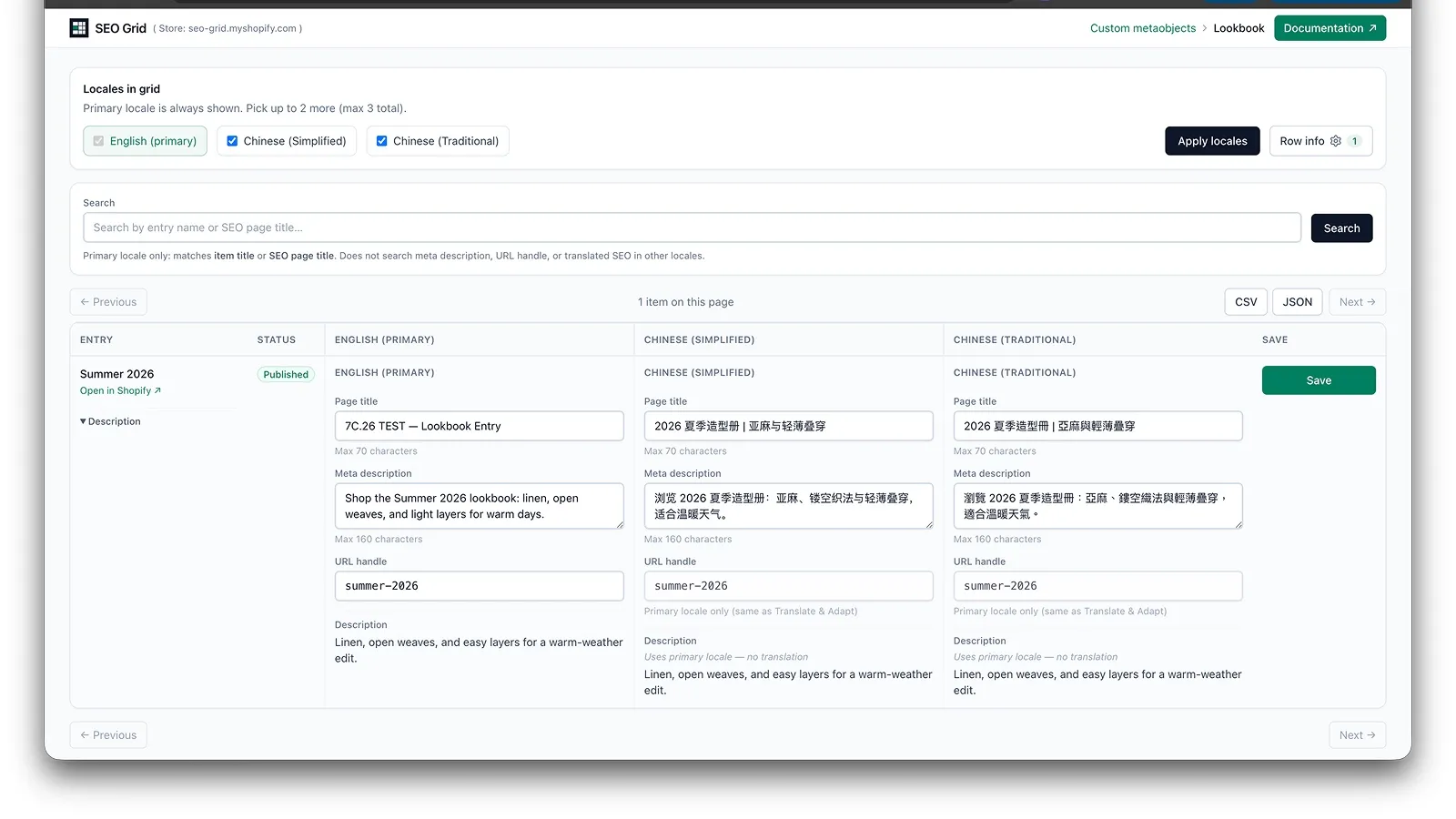
How each field type renders
Section titled “How each field type renders”| Field | Storage | Row info display |
|---|---|---|
Content (rich_text_field) | Shopify rich-text JSON AST | Pretty-printed JSON in a <pre> block — useful for agents that need heading/paragraph structure |
Body HTML (multi_line_text_field) | HTML | Sanitized HTML in a scrollable panel (e.g. Gutenberg block markup) |
Missing translations show the primary-locale value with “Uses primary locale — no translation”.
Search
Section titled “Search”Primary locale only. Search matches entry display name, SEO page title, or URL handle.
Shopify Admin sync
Section titled “Shopify Admin sync”After a successful save, open the entry in Shopify Admin to confirm SEO fields. Admin may need a few refreshes before changes appear — normal Shopify backend caching.
URL handle (primary locale only)
Section titled “URL handle (primary locale only)”Custom metaobject entries share one URL handle across locales — the primary locale column. Shopify does not expose translated handles for metaobjects (Translate & Adapt behaves the same way).
- Edit the handle in the primary locale column only; secondary locale handle fields show the primary value and are read-only in SEO Grid.
- Primary handle changes create a redirect in Shopify Admin → Content → Menu → URL redirects (see Products, pages & blog posts).
- Translated page title and meta description still save per locale column.