
Install SEO Grid on Shopify
This guide covers installing SEO Grid and opening the merchant UI for the first time.
Install the app
Section titled “Install the app”From the Shopify App Store
Section titled “From the Shopify App Store”- Open the Semgrid SEO Grid listing on the Shopify App Store.
- Click Install.
- Review the permissions screen. SEO Grid needs Admin API access to read and update SEO fields on products, pages, blog posts, and renderable custom metaobjects.
- Click Install app to confirm.
Shopify adds SEO Grid to your store and redirects you when install completes.
From a partner install link
Section titled “From a partner install link”If K2 Digital sent a direct install URL:
- Open the link while logged into the correct Shopify store.
- Click Install and confirm on the permissions screen.
Open SEO Grid
Section titled “Open SEO Grid”After install:
- In Shopify Admin, go to Apps.
- Click SEO Grid.
The app opens in a new browser tab at https://seo-grid.k2.digital/ (not embedded in Admin).
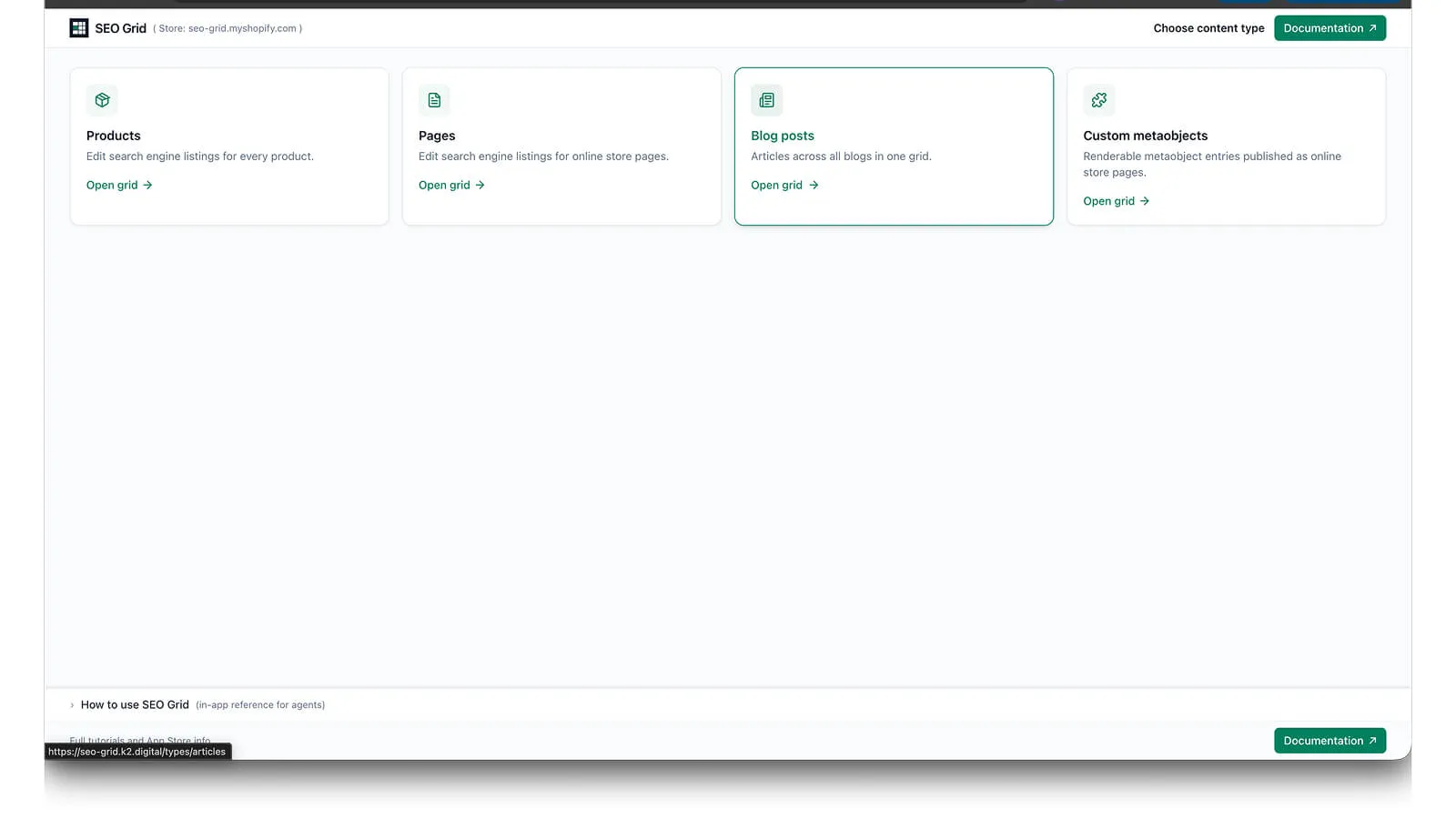
On first open, Shopify may ask you to authorize the app — approve to continue. The first screen is the content type picker.
What happens on install
Section titled “What happens on install”| Step | Result |
|---|---|
| App install | Your shop is linked to SEO Grid |
| OAuth | A secure session is created for your staff browser |
| App Pricing | Choose Basic (3-day free trial, then USD $6/month) if Shopify asks for a plan |
| First screen | Content type picker — Products, Pages, Blog posts, or Custom metaobjects |
Important: SEO data lives in Shopify. SEO Grid reads and writes through the Admin API — it does not replace Shopify as the source of truth.
Session and sign-in
Section titled “Session and sign-in”- Your browser session stays signed in for about 24 hours.
- If you see a sign-in prompt again, go back to Apps → SEO Grid to refresh.
- Your grid edits are stored in Shopify — signing in again does not reset product or page SEO.
App Pricing (billing)
Section titled “App Pricing (billing)”After install, Shopify redirects you to choose a plan before you can use the grid. Select Basic (3-day free trial, then USD $6/month), approve it in Admin, then open Apps → SEO Grid again.
See Billing & plans and Troubleshooting → Plan redirect.
Next steps
Section titled “Next steps”- Quickstart — edit your first row
- Products, pages & blog posts — how the grid works
- Troubleshooting — common install issues