
Quickstart — edit Shopify SEO in the grid
Get SEO Grid running in about 5 minutes.
Before you start
Section titled “Before you start”- A Shopify store with products, pages, blog posts, or renderable custom metaobjects you want to edit
- Staff access to Shopify Admin → Apps
- Willingness to approve the Basic plan (3-day free trial, then USD $6/month) if Shopify asks
1. Install the app
Section titled “1. Install the app”Install SEO Grid from the Shopify App Store listing (or your partner install link). Approve the permissions screen.
See Install from Shopify Admin for details.
2. Open SEO Grid
Section titled “2. Open SEO Grid”- In Shopify Admin, go to Apps.
- Click SEO Grid.
The app opens in a new browser tab (not inside the Admin iframe).
If Shopify shows a plan page, select Basic (3-day free trial, then USD $6/month), then open Apps → SEO Grid again. See Billing & plans.
3. Choose a content type
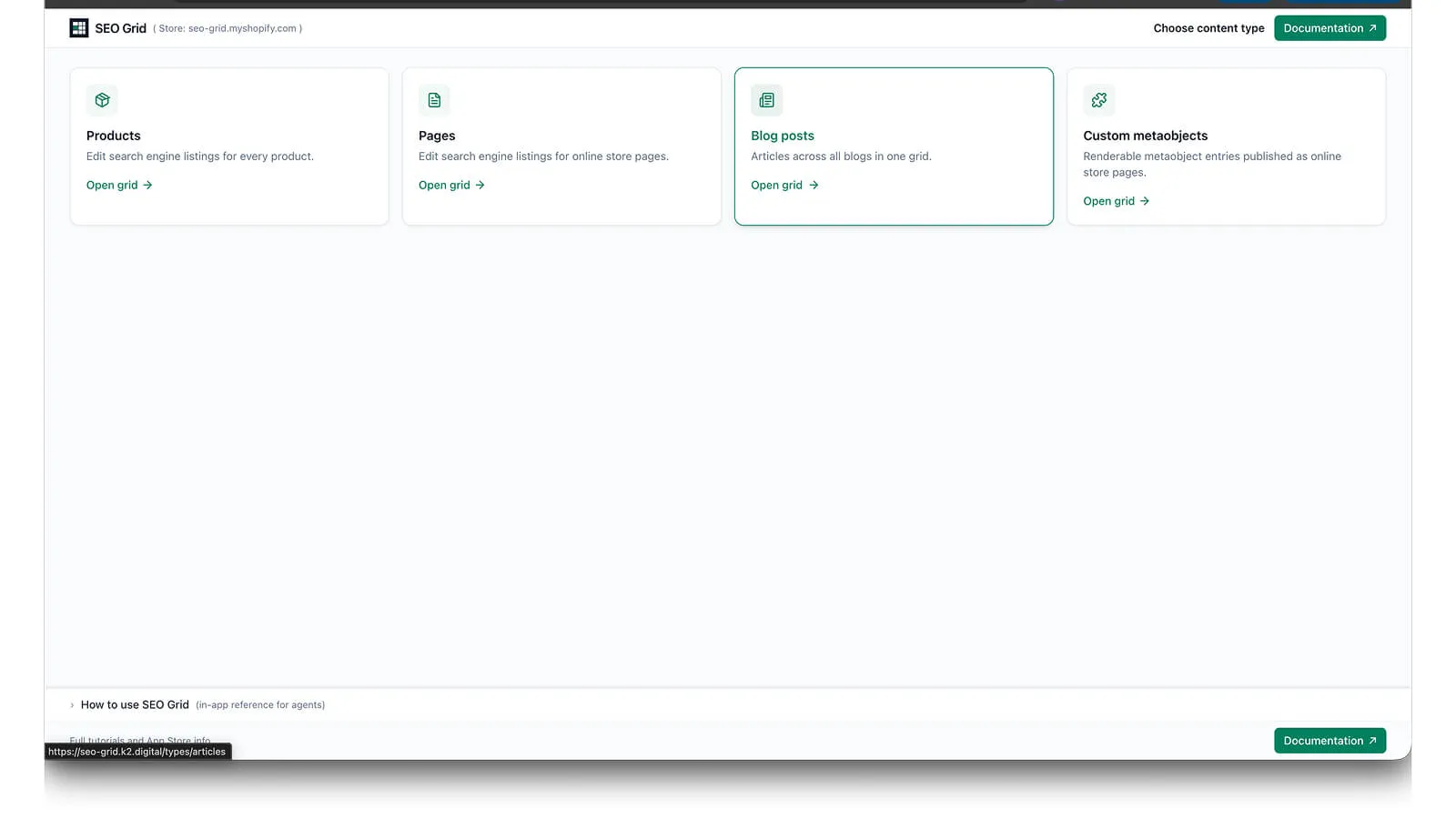
Section titled “3. Choose a content type”On first open you see the content type picker:
| Type | Grid path |
|---|---|
| Products | /types/products |
| Pages | /types/pages |
| Blog posts | /types/articles |
| Custom metaobjects | /types/metaobjects |
Pick the type you want to edit first.
4. Edit and save one row
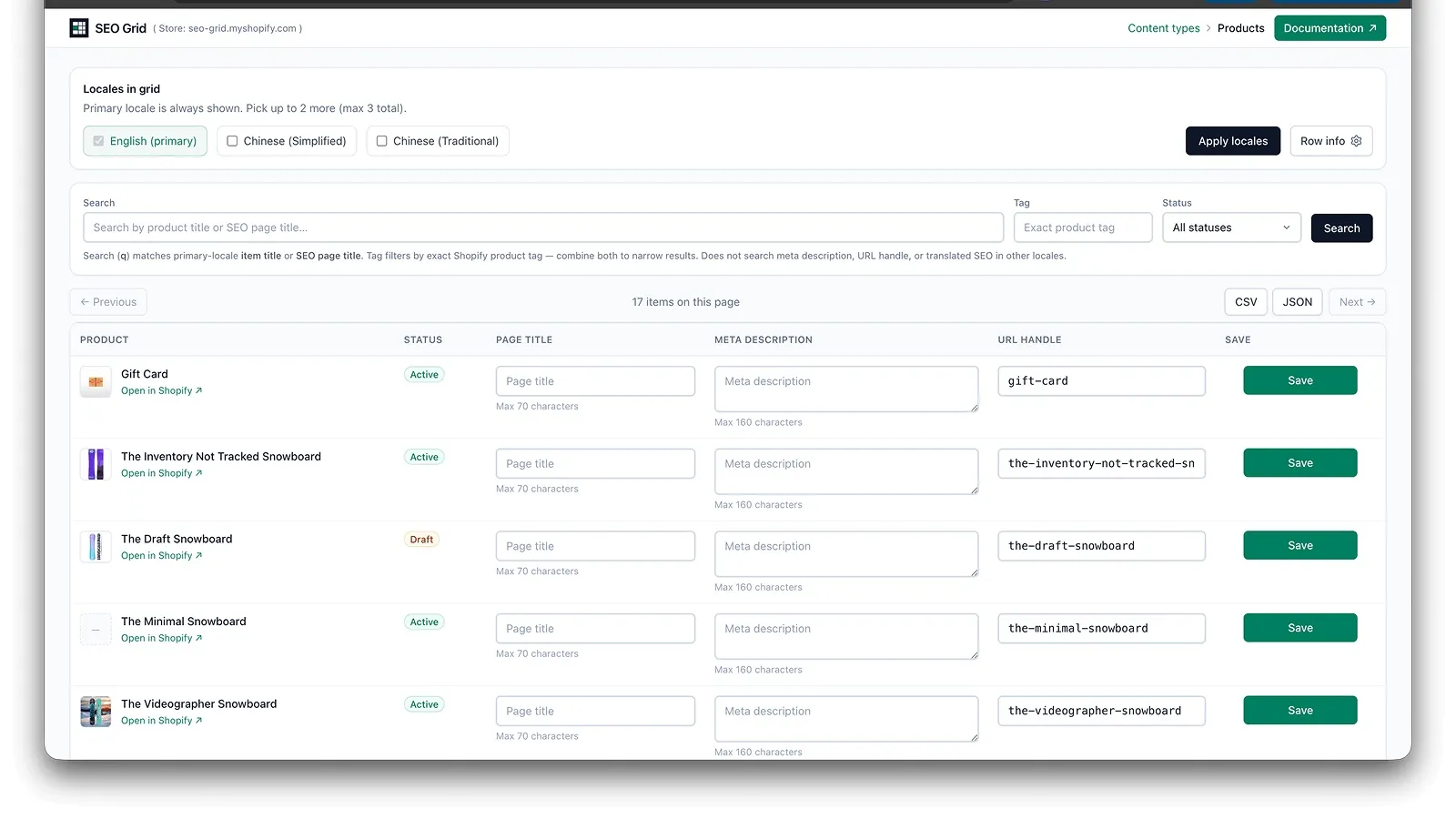
Section titled “4. Edit and save one row”- Find a row (scroll or use search in the primary locale).
- Edit meta title, meta description, or URL handle for the locale column you need.
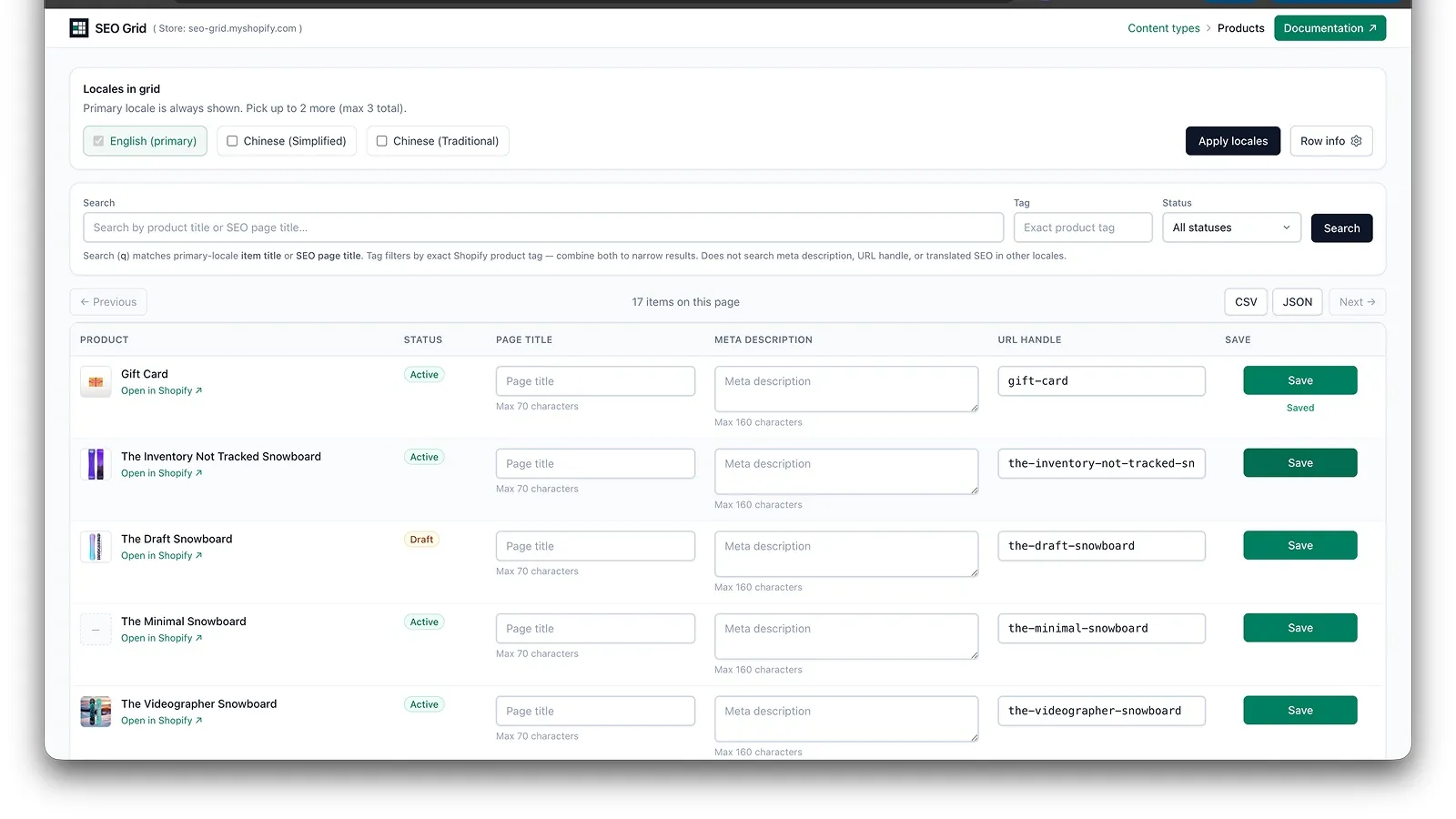
- Click Save on that row only.
Expected: A success message on the row. Changes appear in Shopify Admin on that product, page, or article. Shopify Admin may need a few refreshes before changes appear — normal Shopify backend caching.
5. Optional — add locale columns
Section titled “5. Optional — add locale columns”If your shop publishes more than one locale, open the locale picker and add up to three columns. See Multi-locale columns.
Next steps
Section titled “Next steps”- Products, pages & blog posts — grid behaviour and Admin sync
- Grid transfer (export & import) — CSV / JSON round-trip for the current page
- Save All & unsaved rows — highlight changed rows and save them in one batch
- Browser agents & semantic markup — automation-friendly page structure
- Troubleshooting — if save fails or session expires
Support
Section titled “Support”Questions? Email tech@k2.digital or see Support.