
Products, pages & blog posts — SEO Grid usage
The grid is the main SEO Grid UI: rows = Shopify resources, columns = SEO fields and locale variants.
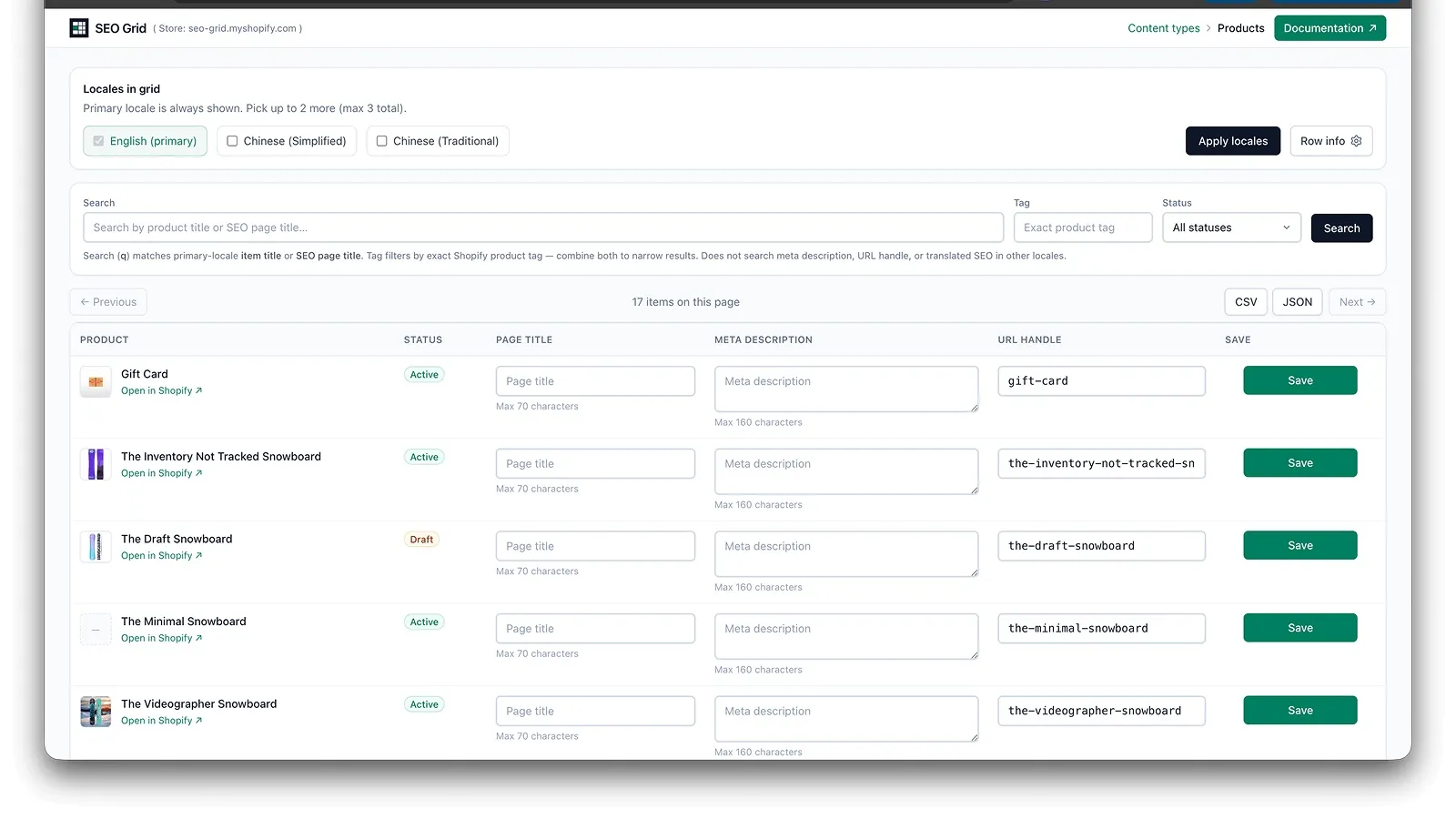
Choose a content type
Section titled “Choose a content type”From the app home or header breadcrumb, open:
| Content type | What you edit |
|---|---|
| Products | Product SEO title, description, handle |
| Pages | Online store page SEO fields |
| Blog posts | Article SEO fields |
| Custom metaobjects | Renderable metaobject entries — see Custom metaobjects |
One type per grid view — switch types from the content type picker or breadcrumb.
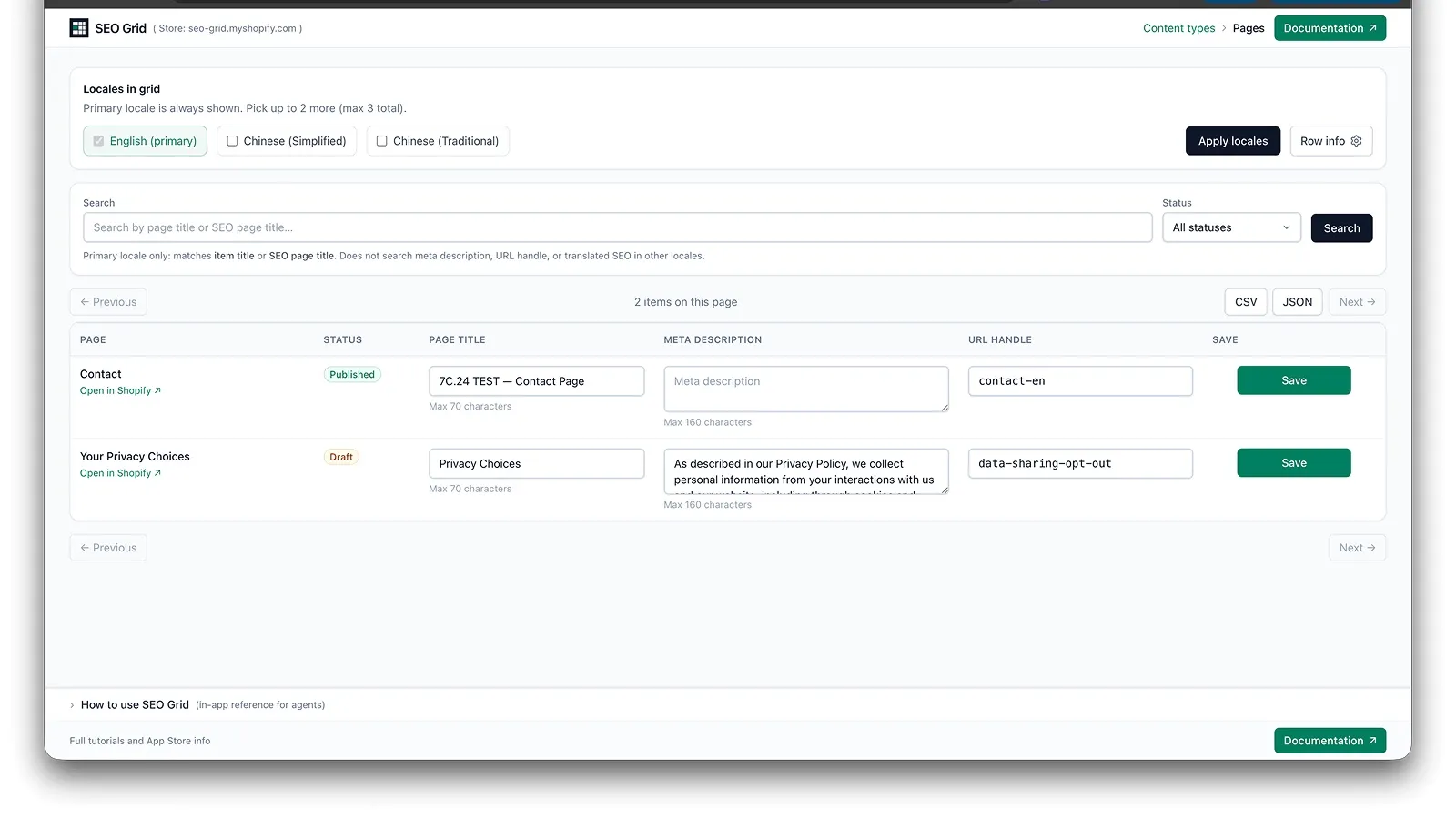
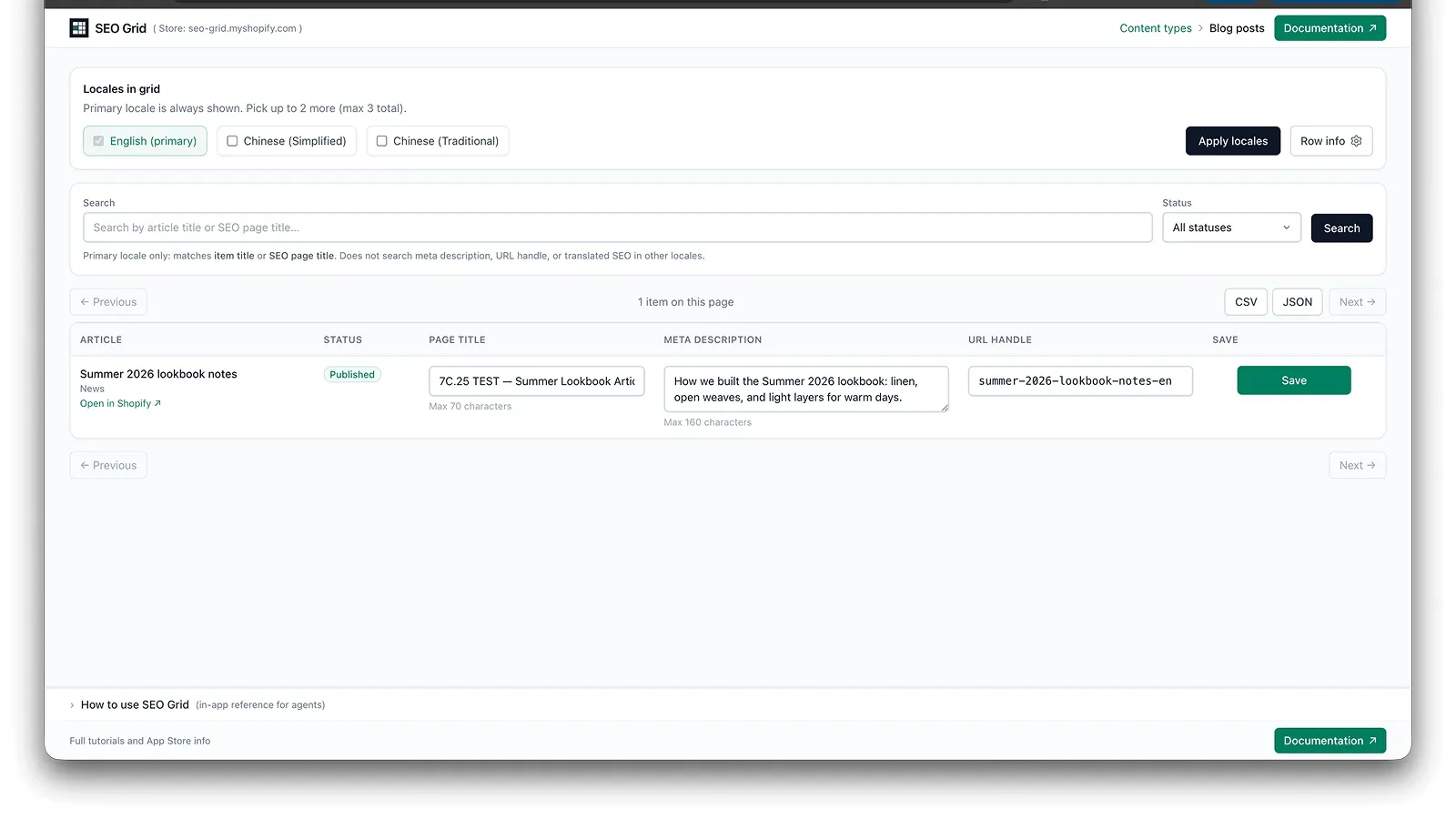
Grid columns
Section titled “Grid columns”Typical columns (varies by locale selection):
| Column | Maps to Shopify |
|---|---|
| Resource name | Product / page / article title (read-only context) |
| Status | Product lifecycle or page/article publish state (read-only) |
| Meta title | SEO title |
| Meta description | SEO description |
| URL handle | Handle / slug |
Status filter
Section titled “Status filter”On products, pages, and blog posts, use the Status dropdown beside the search box to filter which rows load. Default is All statuses (same as before — draft and published items both appear).
| Content type | Filter options |
|---|---|
| Products | All · Active · Draft · Archived · Unlisted |
| Pages / blog posts | All · Published · Draft |
The filter runs server-side through Shopify’s Admin API (accurate pagination and counts). Changing status reloads the grid and resets pagination.
You can combine status with search — for example, find draft products whose title contains “snowboard”, or products tagged wax, or both (?q=snow&tag=wax).
Product tag filter (products only)
Section titled “Product tag filter (products only)”Use the Tag field beside Status to filter by an exact Shopify product tag. This is separate from the search box — ?q= still matches title and SEO page title only; ?tag= matches tags only. Combine with status and search when needed.
URL parameter: ?tag=your-tag (exact tag name; use quotes in API terms if the tag contains spaces). Omit tag for no tag filter.
Custom metaobjects show a Status column (Published / Draft from Shopify) but no status filter — Shopify’s metaobject list API does not support filtering by publish state.
URL parameter for agents and bookmarks: ?status=draft, ?status=published, ?status=archived, or ?status=unlisted (products only for archived / unlisted). Omit status or use status=all for no filter.
Save behaviour
Section titled “Save behaviour”- Click Save on one row at a time, or use Save All (N) to save every highlighted row on this page in one confirmed batch.
- Only changed fields for that row are sent to Shopify.
- Edited SEO cells show an amber highlight until saved — see Save All & unsaved rows.
- Wait for the row success indicator (or Save All batch) before navigating away.
- Other rows are not affected.
Save All saves dirty rows on the current page only (≤25) — not the full catalog. Row info columns are never written.
URL handle changes and redirects
Section titled “URL handle changes and redirects”When you change a URL handle and Save succeeds, old storefront links keep working. How Shopify records that depends on which locale column you edited.
Primary locale handle
Section titled “Primary locale handle”When you change the primary-locale URL handle, SEO Grid asks Shopify to create an explicit redirect from the old path to the new one (same as editing the handle in Shopify Admin).
- Applies to products, pages, and blog posts.
- SEO Grid does not show a redirect toggle; redirects are created automatically on handle change.
- After Save, the new redirect appears in Shopify Admin → Content → Menu → URL redirects (default-locale paths such as
/products/old-handle→/products/new-handle,/pages/old→/pages/new, or/blogs/news/old-post→/blogs/news/new-post).
Translated locale handles
Section titled “Translated locale handles”When you change the URL handle in a secondary locale column only (primary handle unchanged), Shopify updates the translation. Old locale-prefixed storefront URLs still redirect to the new translated handle — the same behaviour as Translate & Adapt.
-
Applies to products, pages, and blog posts (for example
/zh-hant/products/old-handle,/zh-hant/pages/contact, or/zh-hant/blogs/news/old-post). -
Custom metaobjects use a single primary-locale handle only — see Custom metaobjects.
-
SEO Grid saves translated handles via Shopify’s translation API; no separate redirect toggle.
-
These changes usually do not add a new row in Content → Menu → URL redirects — Shopify resolves them through locale routing, not the store-wide redirect list.
-
If a locale column shows the same handle as primary, that locale is using the primary handle — sharing the slug is fine. You can translate the handle separately in a secondary column; after Save, that locale gets its own slug. Changing the primary handle updates any secondary column that has not been translated separately.
To review, edit, or remove primary-locale redirects:
Shopify Admin → Content → Menu → URL redirects
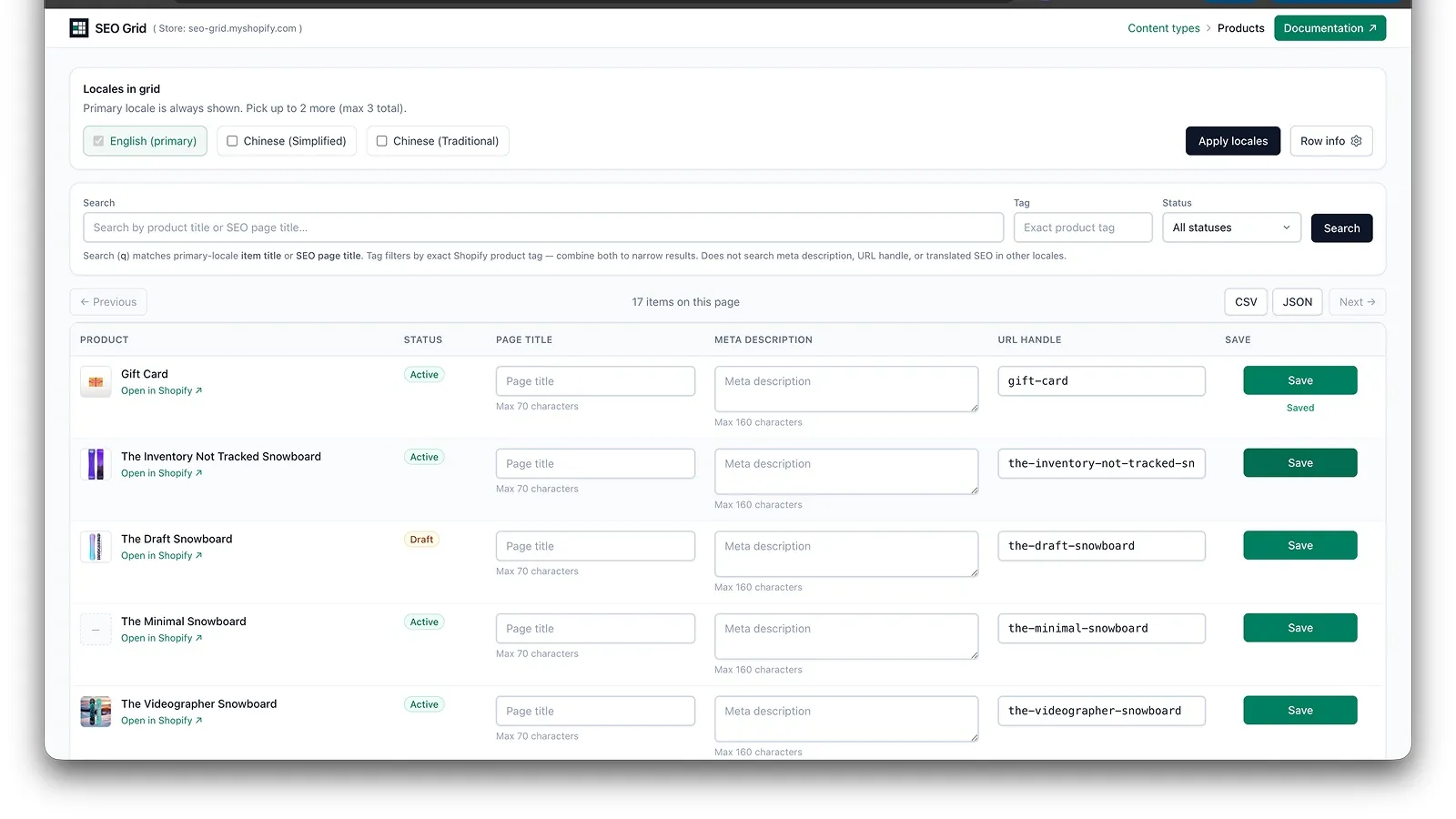
Shopify Admin sync
Section titled “Shopify Admin sync”After a successful save:
- Open the same resource in Shopify Admin.
- Confirm meta title, description, and handle match your grid edits.
- Shopify Admin may need a few refreshes before changes appear — normal Shopify backend caching.
Row info (optional)
Section titled “Row info (optional)”Power users and browser agents can open optional context fields per row. See Row info and AI agents.
Export & import (CSV / JSON)
Section titled “Export & import (CSV / JSON)”Use CSV or JSON in the grid header to export the current page, edit SEO in a spreadsheet or with AI, and import changes back. Import updates grid inputs only — then Save All or Save each row to Shopify. See Grid transfer and Save All.